Adding a new External Tool
How to Add New External Tool in LOR
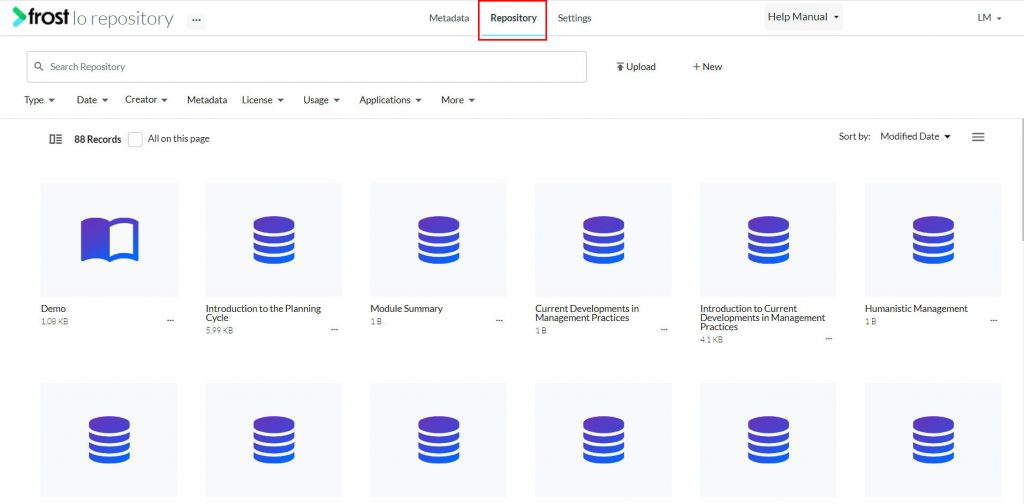
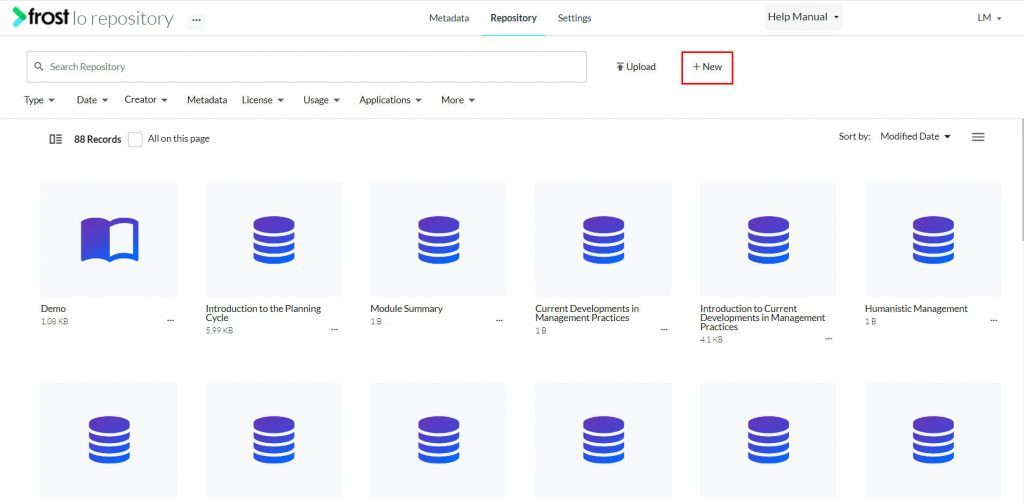
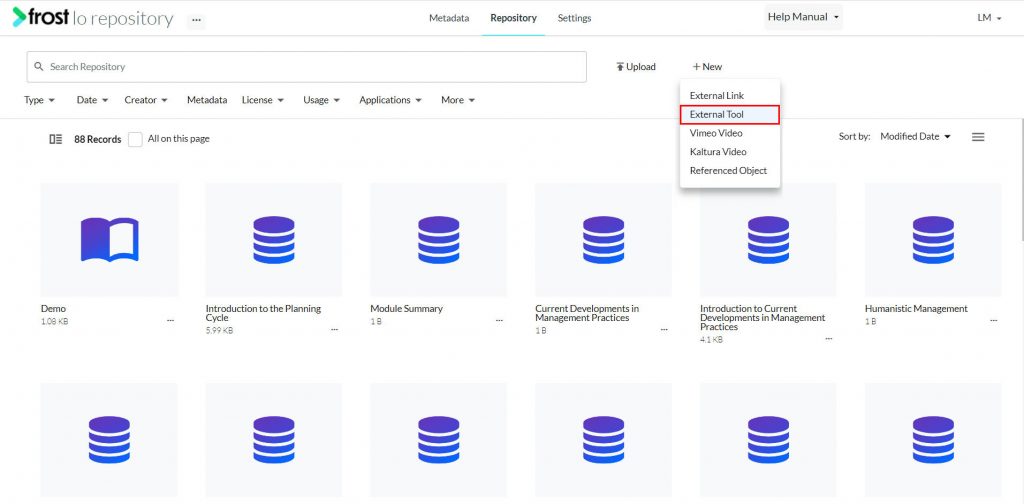
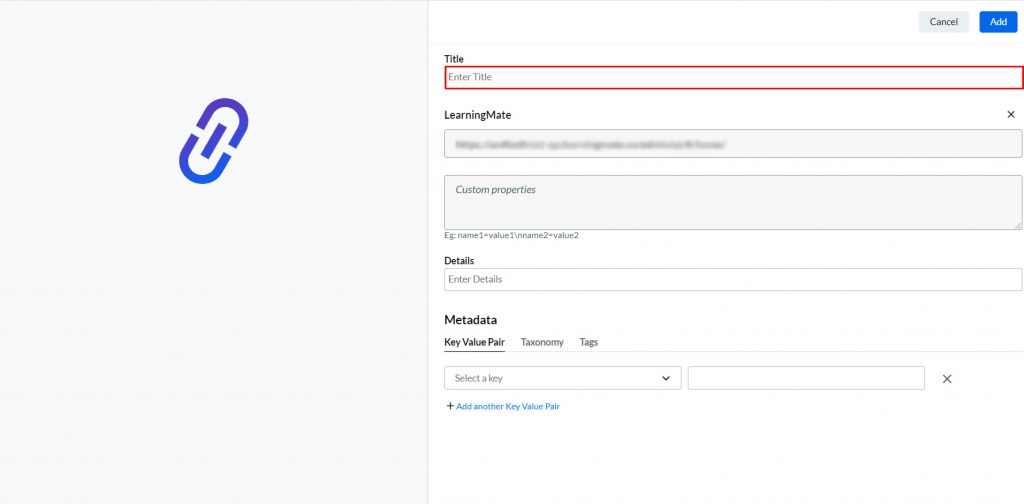
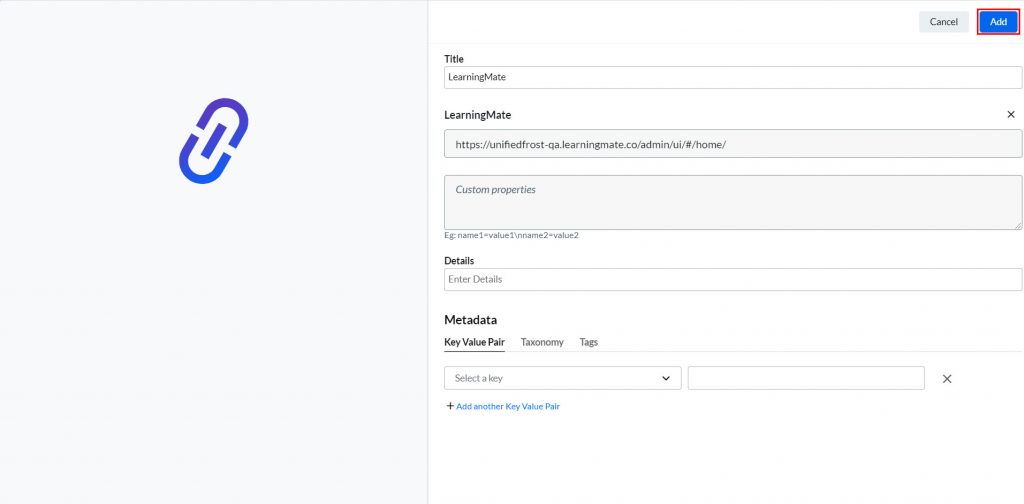
- Navigate to the LO Repository.
- Click the “+ New” button.
- Select External Tool. This opens up a form to add an external tool.
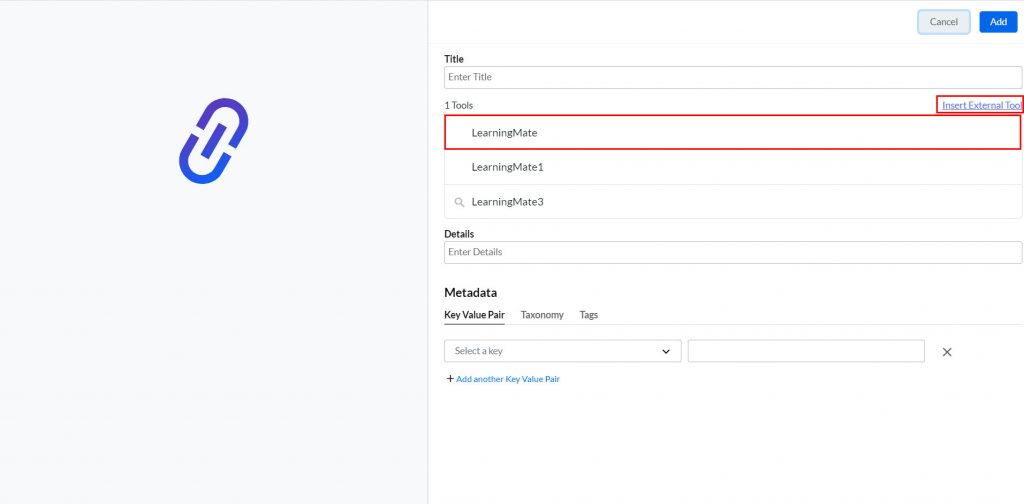
Note: Users can either choose from the available list of LTI 1.1 or LTI 1.3 tools pre-registered in the Admin platform or can click insert new external tool if no tool is pre-registered.
- Select a pre-registered tool from the available list of LTI 1.1 or LTI 1.3 tools:
- LTI 1.1 tools listed can be added directly by selecting the tool
- LTI 1.3 tools will have a search icon next to them, clicking this will open the corresponding 1.3 provider UI to select resources
Note: Once an LTI tool is selected, the Launch URL and Custom Properties will be auto populated (if Custom Properties is added during the registration in Admin). Name, URL & Custom properties are available for the user to add/edit manually.
- Alternatively, to add a tool, click Insert External Tool.
- In the Add Form, you need to input the following details:
- On adding the required details, click the Add button.
Note: On the basis of the type of tool created, the KVP (External Tool Type) will be auto associated with the object.
Comments
0 comments
Please sign in to leave a comment.